Setup Guide
After adding the shortcut, configure these settings to get the most out of Shannon.
1. First run
Open the Shortcuts app and run Shannon. On first launch it will ask for your server URL and API key, then save them for future use.
2. Configure shortcut settings
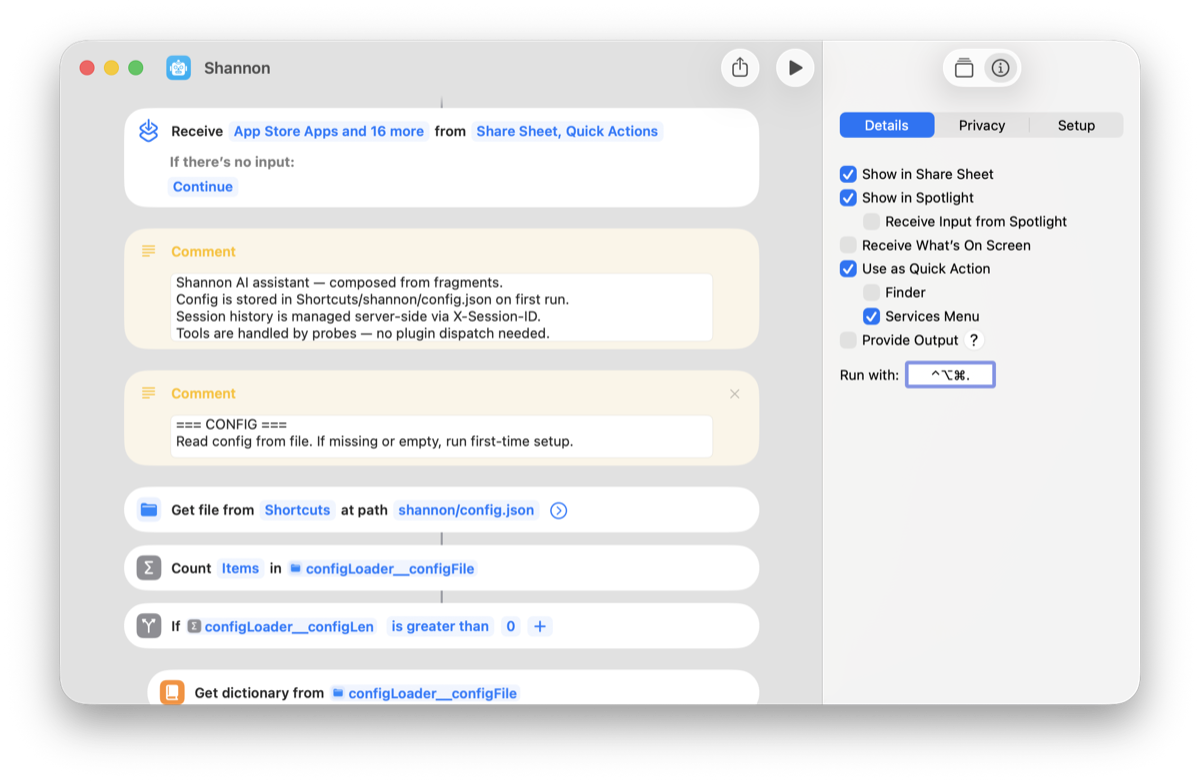
In the Shortcuts app, long-press (or right-click on Mac) the Shannon shortcut and choose the Details tab. Enable these options:
- 1 Show in Share Sheet — lets you send text, links, images, and files to Shannon from any app.
- 2 Show in Spotlight — type "Shannon" in Spotlight to start a conversation.
- 3 Use as Quick Action — on Mac, check Services Menu to access Shannon from the right-click menu.
- 4 Add a keyboard shortcut (Mac only) — set a key combo in the Run with field to launch Shannon instantly from anywhere.
3. Using the share sheet
Shannon accepts input from the share sheet, so you can send it content from virtually any app:
- 1 Select text, highlight a link, or open a photo — anything you want to ask Shannon about.
- 2 Tap the Share button (or right-click on Mac) and choose Shannon from the list.
- 3 Shannon will open with the shared content attached. Type your question and go.
This works with web pages in Safari, articles in News, photos, PDFs, notes, and more.
Need the shortcut? Download it here. View the source on GitHub.